Deeporax Browser MCP
LiveControl a real Chrome browser from any MCP client.
About
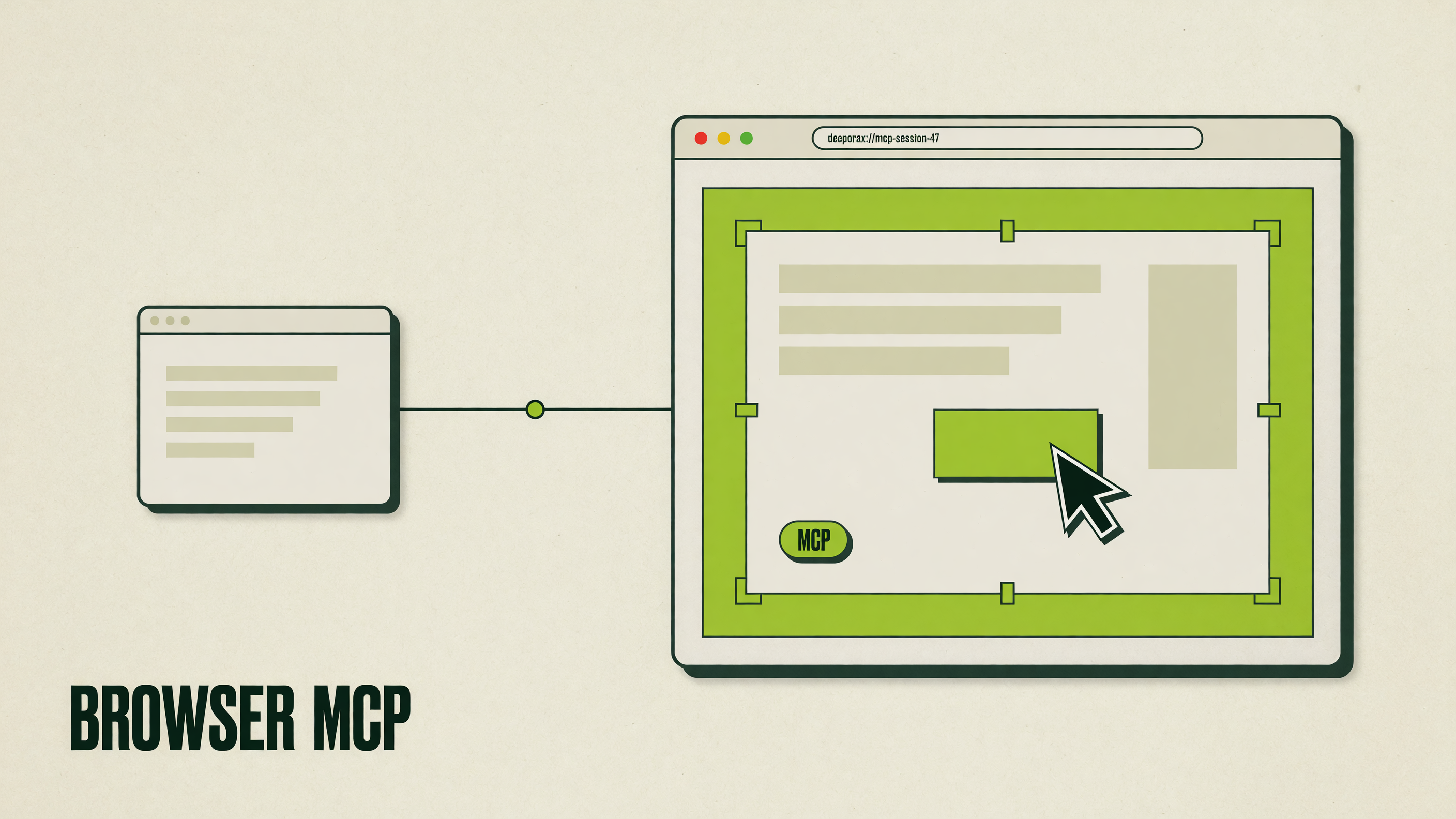
Headless tools launch a throwaway browser with no history and no logins. This one drives the Chrome you already have open, with your profile and your sessions, so the agent starts out past every sign-in wall and bot check. It snapshots the DOM with stable element refs, so it clicks what it can actually see rather than guessing at selectors. Install is two parts: add the extension from the Chrome Web Store, then paste one line into your MCP client. Your client starts the Node server itself, on demand, and shuts it down when the session ends.
Highlights
- 32 browser tools: snapshot, click, type, fill forms, screenshot, network, console, and run JS.
- Drives your existing Chrome profile, so your sessions and logins carry over.
- An on-page overlay names every action, and its Stop button is a hard stop until you resume.
- The bridge listens on 127.0.0.1 only. No traffic goes to a Deeporax server.
- One line to connect Claude Code, Cursor, VS Code Copilot, Windsurf, and other MCP clients.
Install
Two parts, both required: the Chrome extension and the MCP server config in your AI client. Takes about two minutes. Full client configs live in the GitHub README.
- 1Add the Chrome extension
Install Deeporax Browser MCP from the Chrome Web Store (works in Chrome, Edge, Brave, and Arc). Pin it; the badge shows ON when the MCP server is connected. Prefer the Web Store build for automatic updates. To load unpacked instead, grab extension-dist.zip from GitHub Releases or the extension folder inside the npm package.
- 2Connect your MCP client
Your AI client starts the Node server over stdio — you do not run it in a terminal. Claude Code:
claude mcp add deeporax-browser-mcp -- npx -y deeporax-browser-mcp - 3Or paste a config block
Cursor, Claude Desktop, Windsurf, and most other clients use this shape (VS Code uses servers instead of mcpServers — see GitHub for each client):
{ "mcpServers": { "deeporax-browser-mcp": { "command": "npx", "args": ["-y", "deeporax-browser-mcp"] } } } - 4Verify
Ask your agent: “use browser_status then snapshot my current tab.” You should see connected: true and DOM refs like e1, e2. If the extension stays OFF, reload it on chrome://extensions and confirm nothing else is bound to port 17373.
The 32 tools
- browser_snapshot
Accessibility-style DOM with refs e1, e2. Start here.
- browser_screenshot
PNG of the visible viewport.
- browser_find
Search the page by text or regex, returns refs.
- browser_get_text
Read the rendered text of the page or an element.
- browser_get_html
Read raw markup when the snapshot is not enough.
- browser_get_bounding_box
Element box in CSS pixels.
- browser_click
Click by ref or CSS selector.
- browser_click_xy
Click at viewport coordinates, computer-use style.
- browser_type
Type into an input, optionally submitting it.
- browser_fill_form
Fill many fields in a single call.
- browser_press_key
Send a key or a chord such as Control+a.
- browser_hover
Hover an element to reveal what it hides.
- browser_drag
Drag one element onto another.
- browser_select_option
Choose values in a select.
- browser_scroll
Scroll the page, or bring an element into view.
- browser_file_upload
Set files on a file input.
- browser_navigate
Go to a URL, optionally in a new tab.
- browser_tabs
List, open, close, or select tabs.
- browser_back
Go back in history.
- browser_forward
Go forward in history.
- browser_reload
Reload the tab.
- browser_wait
Wait for a duration, some text, or a selector.
- browser_resize
Resize the window to test a breakpoint.
- browser_console
Read log, warn and error, filterable by regex.
- browser_network
List recent network requests.
- browser_evaluate
Run JavaScript in the page and get the result.
- browser_handle_dialog
Decide alert, confirm and prompt behaviour up front.
- browser_status
Extension connection state and the active tab.
- browser_overlay
Show or hide the overlay, or resume after a Stop.
- browser_highlight
Outline an element so a human can see it.
- browser_batch
Run several actions in one round-trip.
- browser_clear_tmp
Delete saved snapshots and screenshots.
Questions
- Do I have to start the server myself?
- No. Your MCP client launches it over stdio the first time a browser tool is called, and shuts it down when the session ends. Running it yourself in a terminal is the usual cause of a port conflict.
- Where is the source code?
- On GitHub at github.com/imfaisii/deeporax-browser-mcp (MIT). The npm package is deeporax-browser-mcp; release zips include the unpacked extension if you prefer Load unpacked over the Chrome Web Store.
- How is this different from a headless browser tool?
- A headless tool gets a fresh, empty profile that is logged out of everything and runs off-screen. This drives the Chrome in front of you, already signed into your dashboards, in a tab you can watch and interrupt.
- Does it work in browsers other than Chrome?
- Yes. The extension runs on Chromium browsers, including Edge, Brave and Arc. Install it from the Chrome Web Store in any of them.
- What happens to the snapshots and screenshots it takes?
- They are written to /tmp/deeporax-browser-mcp on your own machine, pruned after 30 minutes, and capped at 40 files per kind. browser_clear_tmp wipes them immediately.
- Should I point it at my main Chrome profile?
- That is the point of it, and also the risk: browser_evaluate runs arbitrary JavaScript in the page, so MCP access is effectively full browser control. For unattended runs, use a dedicated Chrome profile.