Scrollshot — Full Page Screenshot
LiveCapture any webpage exactly as it should look, in one click.
About
Scrollshot is a Chrome extension that captures full-page, visible-area, or drag-selected region screenshots, then lets you crop and mark them up without leaving the browser. It's built for the pages that break other screenshot tools: infinite scroll, lazy-loaded images, and sticky headers that duplicate down a stitched capture. There's no account, no sign-in, and no server — every capture is stitched, cropped, and encoded entirely on your device, and nothing is uploaded anywhere unless you personally choose to download or copy it.
Highlights
- Full-page capture that waits for lazy-loaded content to actually render, instead of guessing on a fixed timer.
- Visible-area and drag-select region capture for when you don't need the whole page.
- Crop, arrows, highlights, and text labels, built in with full undo/redo.
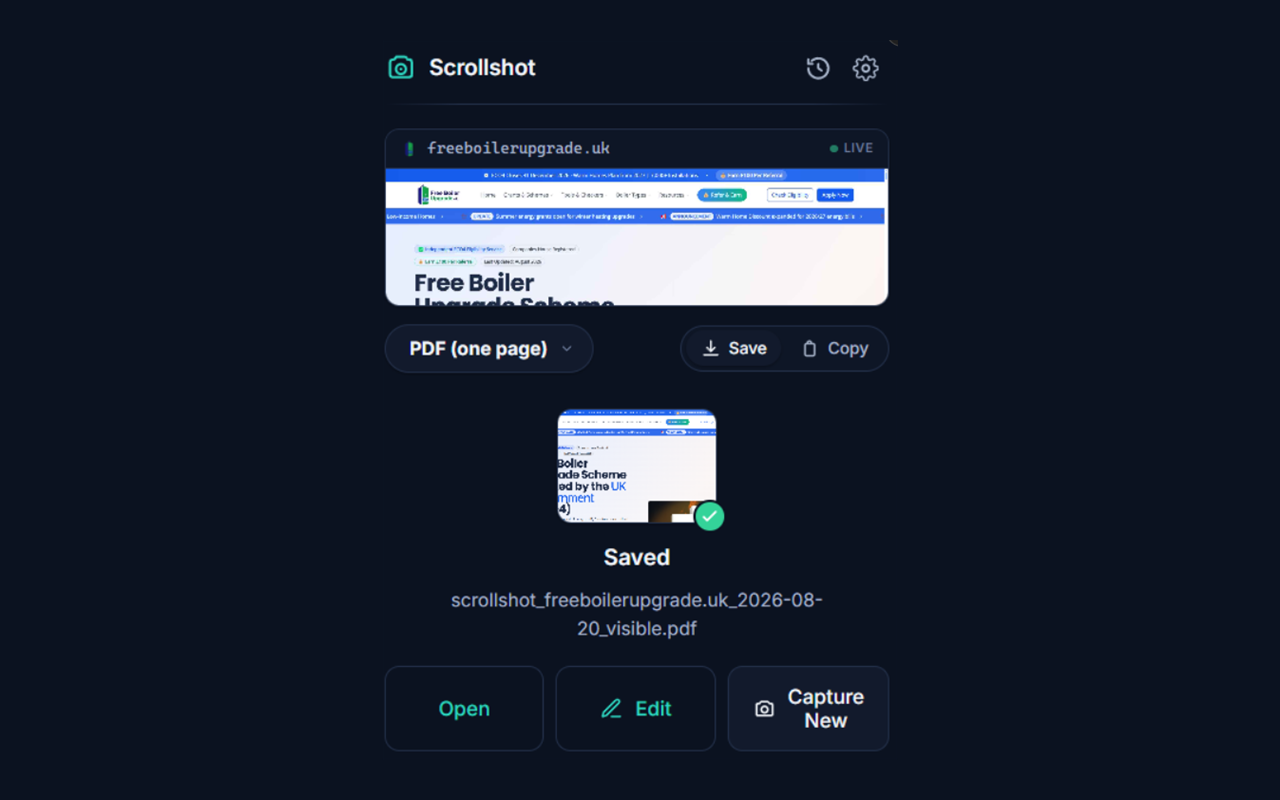
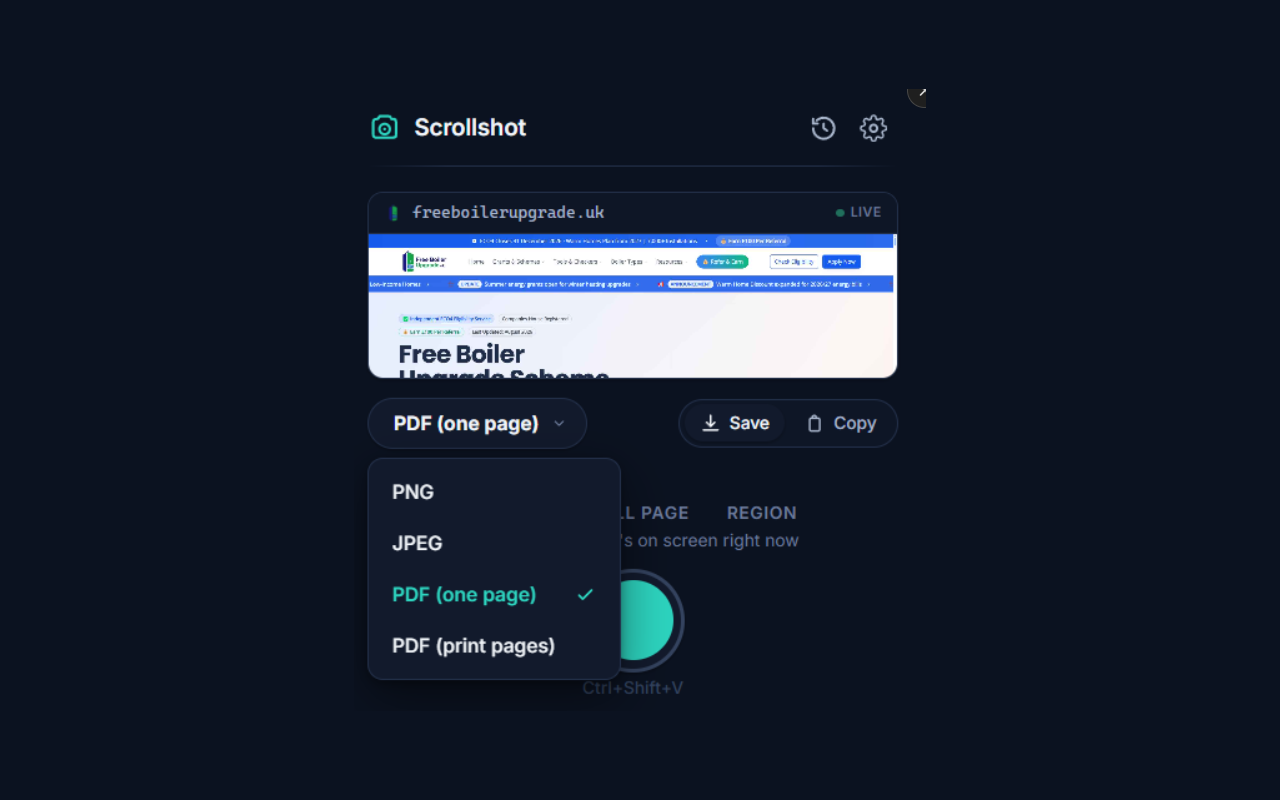
- Export as PNG, JPEG, or PDF — a single long page for archiving, or paginated for print.
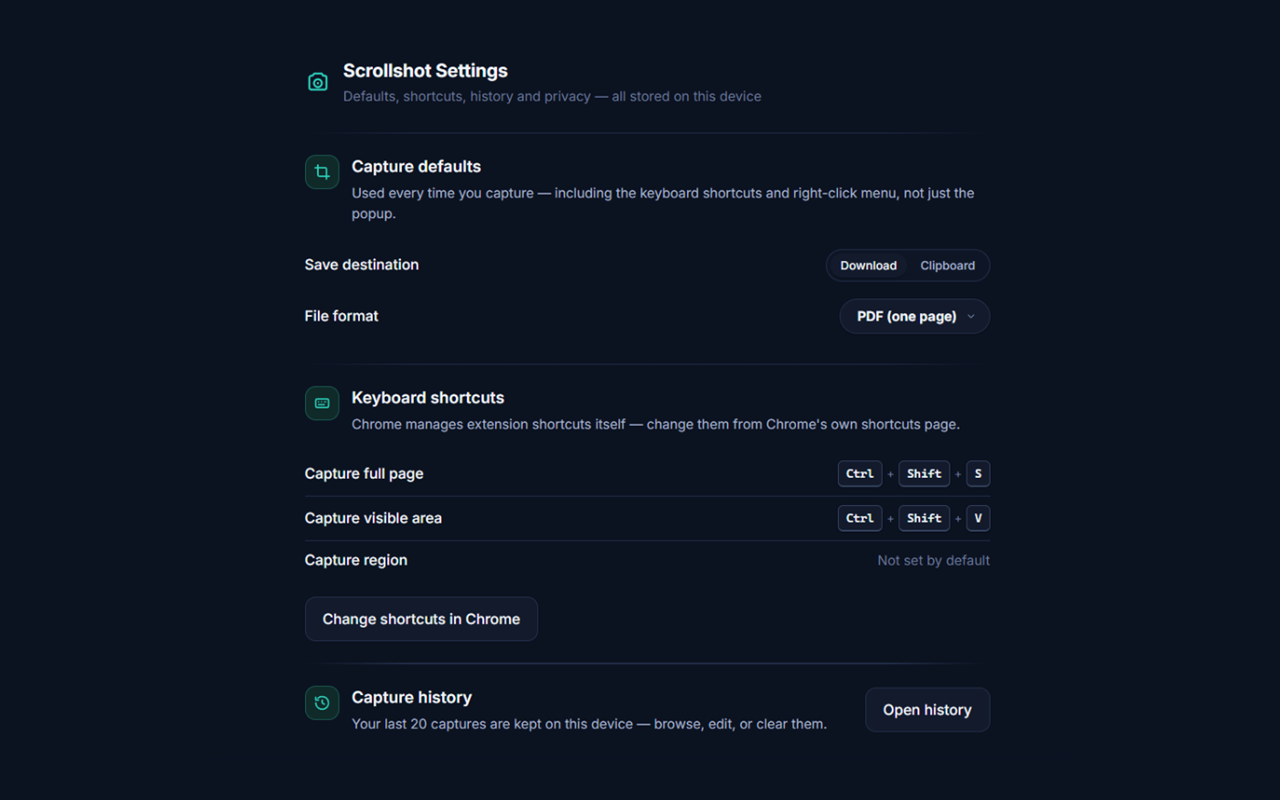
- Copy a capture straight to your clipboard, or keep a local history of your last 20 captures.
- No account, no server, no analytics — every capture is processed entirely on your device.
How it works
Four steps, all of it inside the extension — nothing to configure before your first capture.
- 1Pick a capture mode
Click the toolbar icon, use a keyboard shortcut (Ctrl+Shift+S for full page, Ctrl+Shift+V for visible area), or right-click the page — choose full page, visible viewport, or drag-select a region.
- 2Scrollshot captures it
For full-page captures, it scrolls the page in slices, waiting for images and lazy-loaded content to actually render instead of guessing on a fixed timer, then stitches the slices together and removes duplicated sticky headers and footers.
- 3Edit right in the extension
Crop, draw arrows, add highlighted call-outs, and type labels directly onto the capture, with full undo/redo.
- 4Export however you work
Save as PNG, JPEG, or PDF, download to a file, copy straight to the clipboard, or keep it in a local history of your last 20 captures.
Features
- Full-page capture
Scroll-and-stitch that waits for lazy-loaded content instead of a fixed timer.
- Visible-area capture
One click for just what's on screen, no scrolling needed.
- Region capture
Drag-select exactly the part of the page you want.
- Crop & markup
Arrows, highlights, text labels, and full undo/redo, built in.
- PNG / JPEG / PDF export
A single long page for archiving, or paginated for print.
- Clipboard copy
Copy a capture straight to your clipboard, no dialog.
- Local capture history
Your last 20 captures, kept on-device, revisit anytime.
- Keyboard shortcuts & right-click
Capture from the keyboard or the page's own context menu.
Questions
- Does Scrollshot send my screenshots anywhere?
- No. There's no backend — every capture is stitched, cropped, and encoded on your device. Nothing leaves it unless you personally download it, copy it, or open a saved file.
- What permissions does it need, and why?
- Active Tab to see the page you're capturing, Scripting to scroll it into position, Downloads and Clipboard Write to save or copy a capture, Offscreen for the background canvas image stitching requires, Context Menus for the right-click option, and Storage for your preferences. No host permissions beyond the page you're actively using it on.
- Where are my past captures stored?
- Locally, in your browser's IndexedDB — your last 20 captures, tied to your browser profile. Uninstalling the extension removes them.
- Does it handle infinite scroll and sticky headers?
- Yes — it's built for exactly those cases. It waits for lazy-loaded content to render instead of capturing on a timer, and it removes duplicated sticky headers and footers from the stitched image.
- Where can I install Scrollshot?
- From the Chrome Web Store — search "Scrollshot — Full Page Screenshot" or use the Add to Chrome button above. It installs the same way in Chrome, Edge, Brave, and Arc, since they all read the Chrome Web Store.